
Use External Data in Jira Automation
The External Data automation action External Data - Get Data from Source lets Jira Automation flows retrieve data from configured External Data sources. Returned data can then be used by later steps in the automation flow using smart values.
The External Data automation action is available only with the Advanced Edition plan. It is not yet supported on the Atlassian Government Cloud.
Before you begin
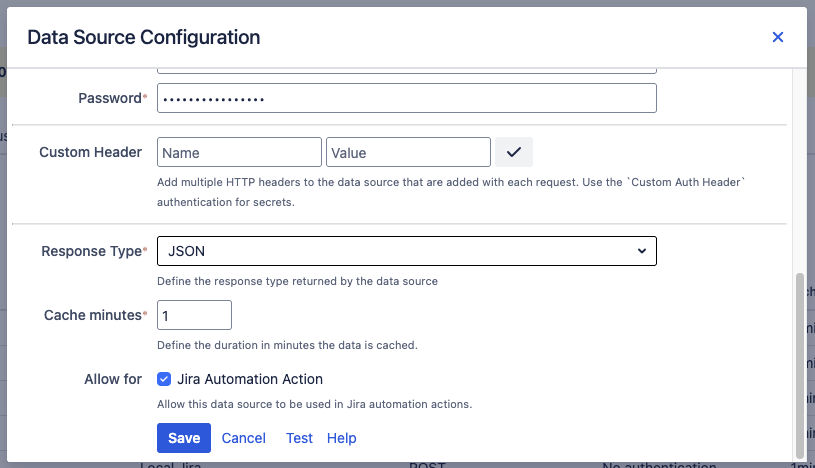
A global Jira administrator must enable each data source to make it available to Jira Automation. Only data sources explicitly enabled by an administrator appear as options in automation actions. To enable a data source, open its configuration in the External Data app and check Allow for Jira Automation Action.
Configure the automation action
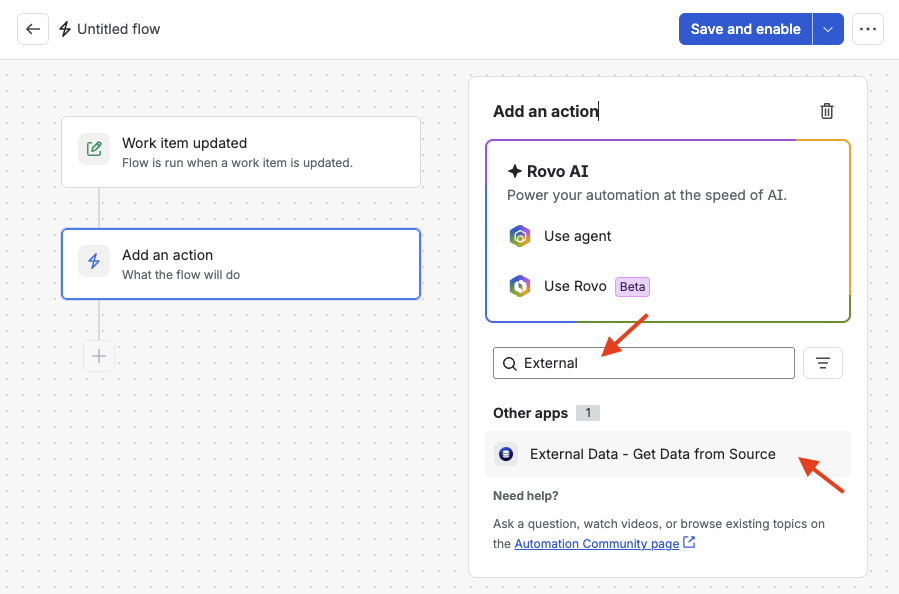
Add the External Data - Get Data from Source to a Jira automation flow and select an enabled data source.
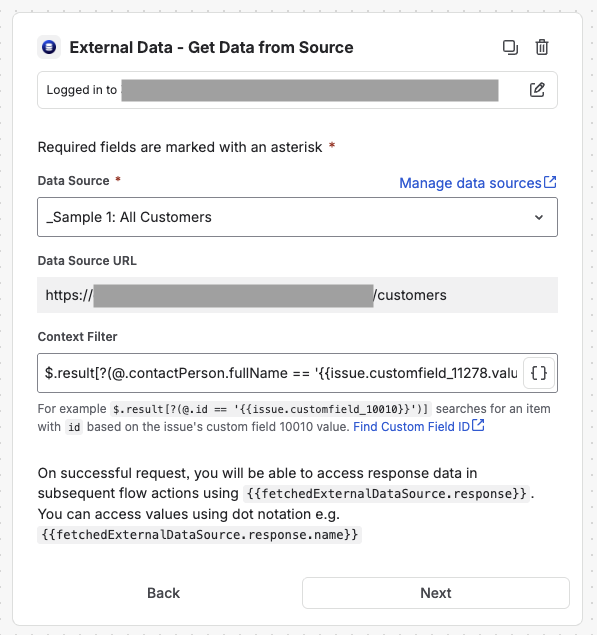
You can configure an optional context filter. Context filters:
-
Return only records relevant to the current execution.
-
Use Jira automation smart values to build dynamic criteria.
-
Reduce response size.
You can use JSONPath and Jira automation smart values like {{issue.customfield_10010}}
Example of a context filter that returns specific data:
$.result[?(@.contactPerson.fullName == '{{issue.customfield_11278.value}}')]
The exact filter syntax and available values depend on the selected data source.
When you set a context filter, the result is always an array.
Response-size limit
The automation action accepts responses up to 5 MB.
If a data source returns over 5 MB, the action cannot process it. To avoid this:
-
Add a context filter to retrieve fewer records.
-
Use a Converter data source to transform and reduce the data returned.
Response
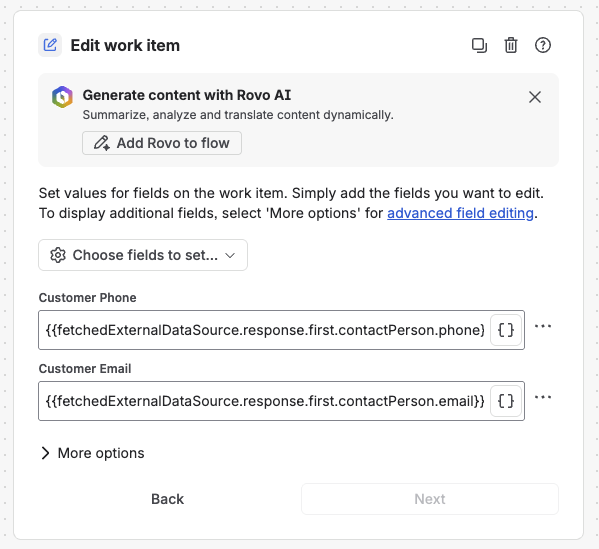
On a successful request, access response data in later flow actions with the smart value: {{fetchedExternalDataSource.response}}. Use dot notation to access fields, for example {{fetchedExternalDataSource.response.first.name}}.
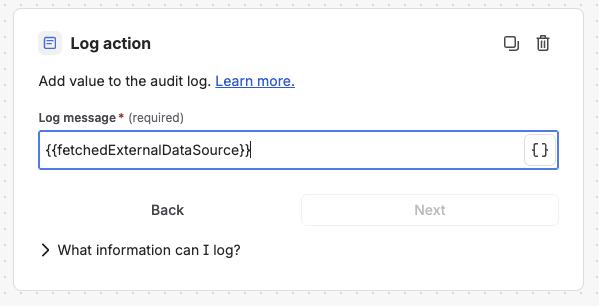
For testing, add an audit log with {{fetchedExternalDataSource}} to view the complete response object.
An subsequent flow action could, for example, update two fields based on external data results:
Limitations
-
Only available in the Advanced Edition plan
-
Maximum request size: 5 MB
-
Request timeout: 25 seconds