
Introduction
While many spaces (projects) are unique and benefit from starting afresh with a blank space, there are also recurring spaces that involve similar requirements. Let's take the example of a construction company that employs Jira to manage its house-building spaces. For each house they construct, they create a separate Jira space. Within each space, they create Jira work items for every step involved in the building process, such as foundation setup, plumbing and electrical work, and insulation and drywall installation.
Setting up such a space manually, even with a clear understanding of the necessary steps and utilizing Jira's clone feature, can be time-consuming, frustrating, and prone to errors. One would have to copy the space with the same configuration, duplicate the space board, and manually clone each individual task. Additionally, bulk changes would be required to move the work items to the new space.
This guide provides a practical use case for Deep Clone for Jira, illustrating how it can be used to easily recreate template spaces and significantly streamline your project management process.
Step-by-Step Guide
Step 1: Initial Setup
-
Begin by gathering and documenting all requirements in a document.
-
Create a Jira space to serve as your template. This space should include work items that encapsulate all the requirements from your document.
Step 2: Defining Work Items
-
In your template space, ensure each work item clearly describes the desired outcome rather than the specific steps to achieve it.
-
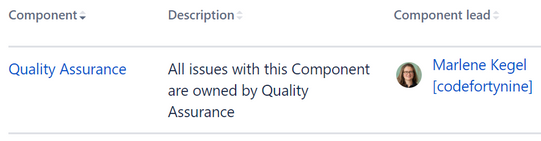
Utilize Jira Components to assign work items to relevant departments or teams.
-
Step 3: Cloning the Space (Project)
Use a Space Clone (Project Clone) to clone the template space (project), including its configuration.
Be aware that to clone some parts of your template space (project), you need to have enabled.
Option 1: Space Clone From the Deep Clone Navigation.
-
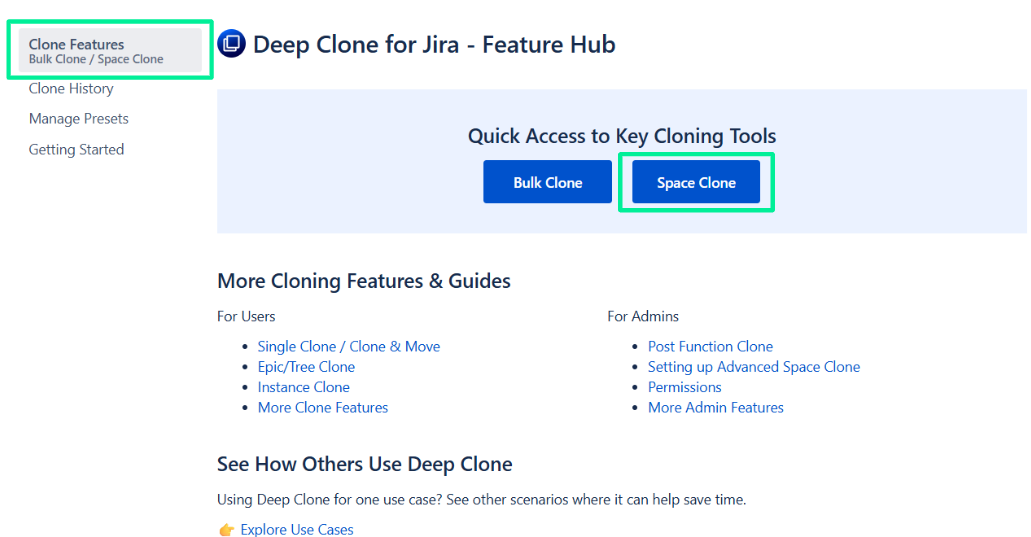
Select Apps > Deep Clone for Jira on the main sidebar on the left
-
Click Space Clone in the header of Clone Features page.
Option 2: Space Clone From the Bulk Clone Dialog.
-
Open the Bulk Clone dialog.
-
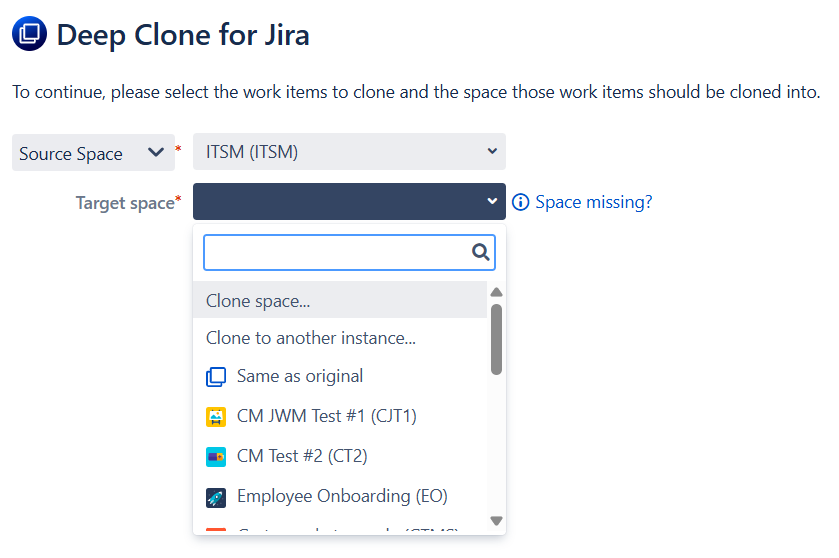
When configuring your Bulk Clone, choose Clone space … as the Target space.
-
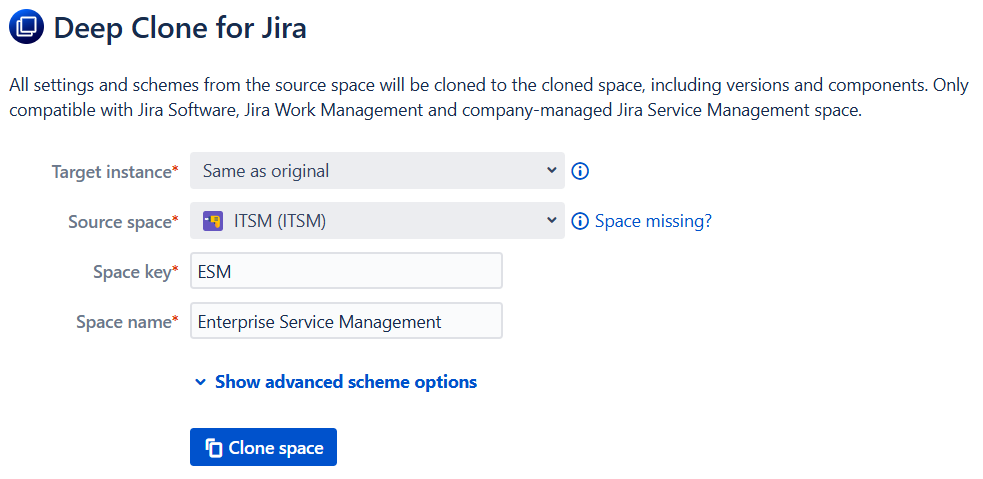
You can now select the Source Space where those settings should be cloned from, including the source key and name for the new space.
-
Once you confirm with Clone space, the new space will be created. No work items have been cloned yet.
-
You can proceed to clone work items into the new space by clicking on Clone work items. After that, you can clone all work items of the source space into the newly created space or pick other work items that should be cloned. You can also click Close Dialog and leave the new space empty.

Step 4: Cloning the Work Items
Configure the Bulk Clone to your requirements.
-
You can also dynamically adjust field values of your template with Clone and Edit with Jira Expressions.
-
Open the clone dialog
-
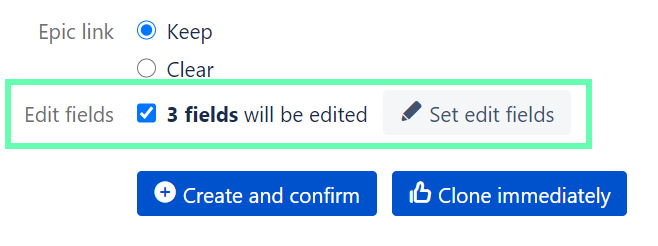
Click Open Field Editor ✏️ under Edit fields
-
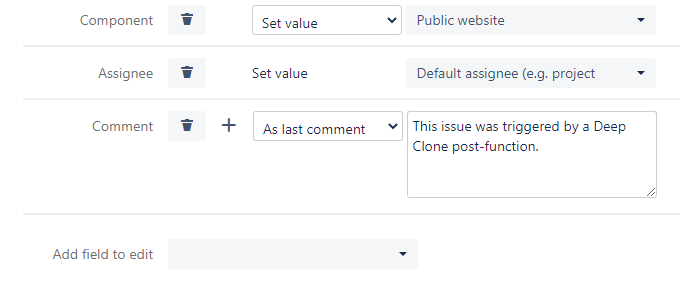
Set fields that should be edited automatically in the clone
-
Conclusion
Implementing Deep Clone for Jira in your workflow can dramatically increase efficiency, particularly in environments where projects or events recur with similar requirements. By establishing basic standards and utilizing templates in Jira coupled with powerful cloning capabilities, teams can achieve a more streamlined, agile process.
Remember: The key to success with Deep Clone for Jira is in the initial setup of your template space and the thoughtful organization of work items and Components. Once this foundation is in place, the app enables rapid, efficient duplication and customization for each new space (project).
Contact us if we can help you with your use case!
This page is based on our Atlassian community article.