
Use Deep Clone as a Jira automation action by adding the “Deep Clone - Single Clone” action to your Jira automation flow.
The Jira automation action is not yet supported on the Atlassian Government Cloud.
Step by step
-
Create a Jira automation with a trigger and any steps that you want to execute before the work item clone.
-
Click + Add step.
-
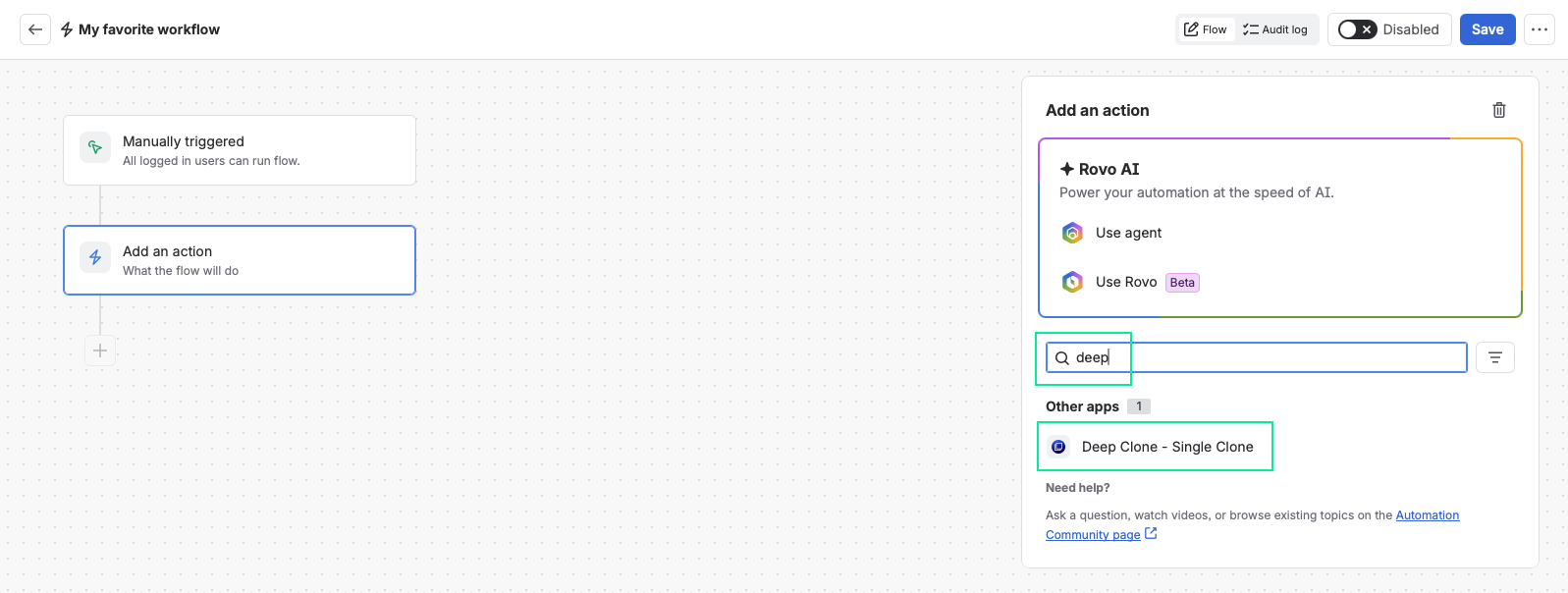
Select Action, type “Deep Clone” and select Deep Clone - Single Clone from the results list.
-
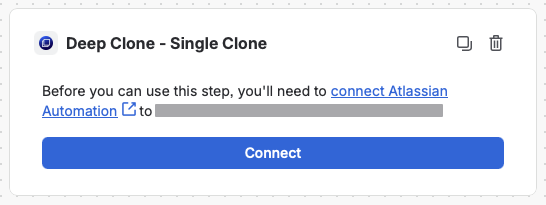
Click Connect.
Permissions required
Make sure you have all necessary permissions. Deep Clone will execute clones in your name and with your permissions.
-
Configure the action depending on your use case. Add additional workflow steps if needed.
Typical use cases
Single clone
Use this to: Single clone the work item that triggered your flow.
-
Enter
{{issue.key}}as your Source Work Item Key. -
Select any Preset.
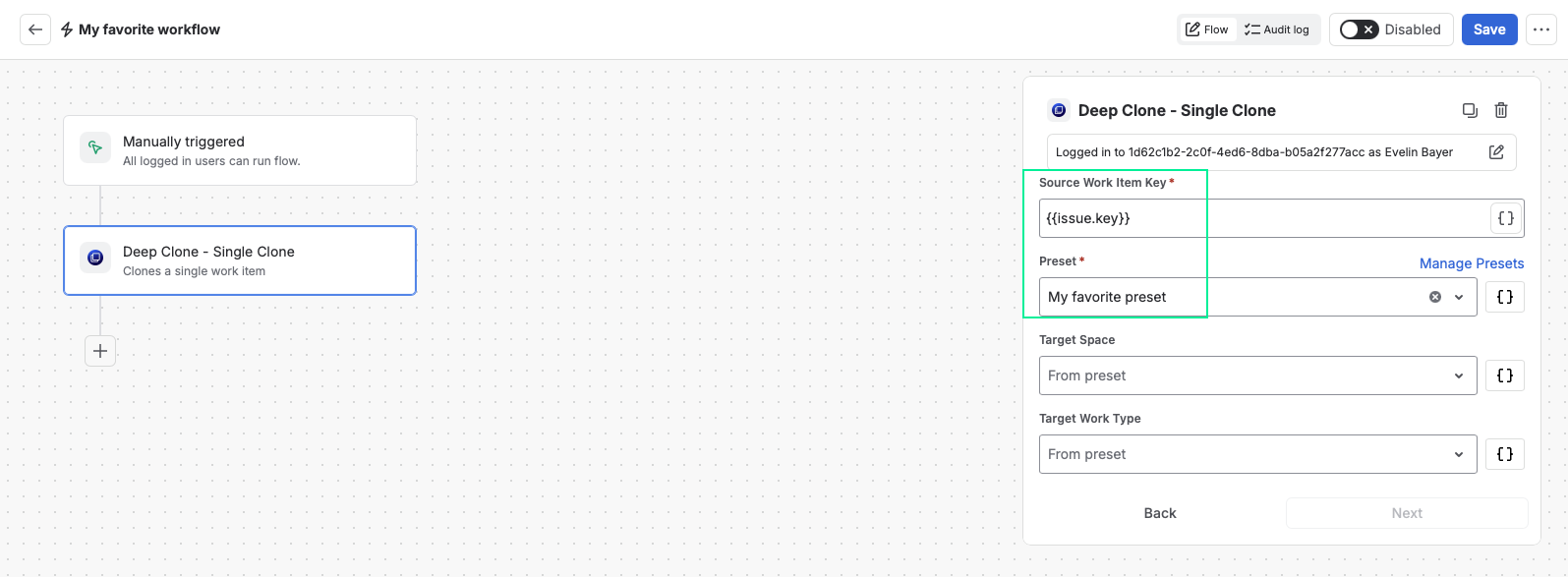
→ You can also use Jira workflows for single clone.
Bulk clone (with link limitations)
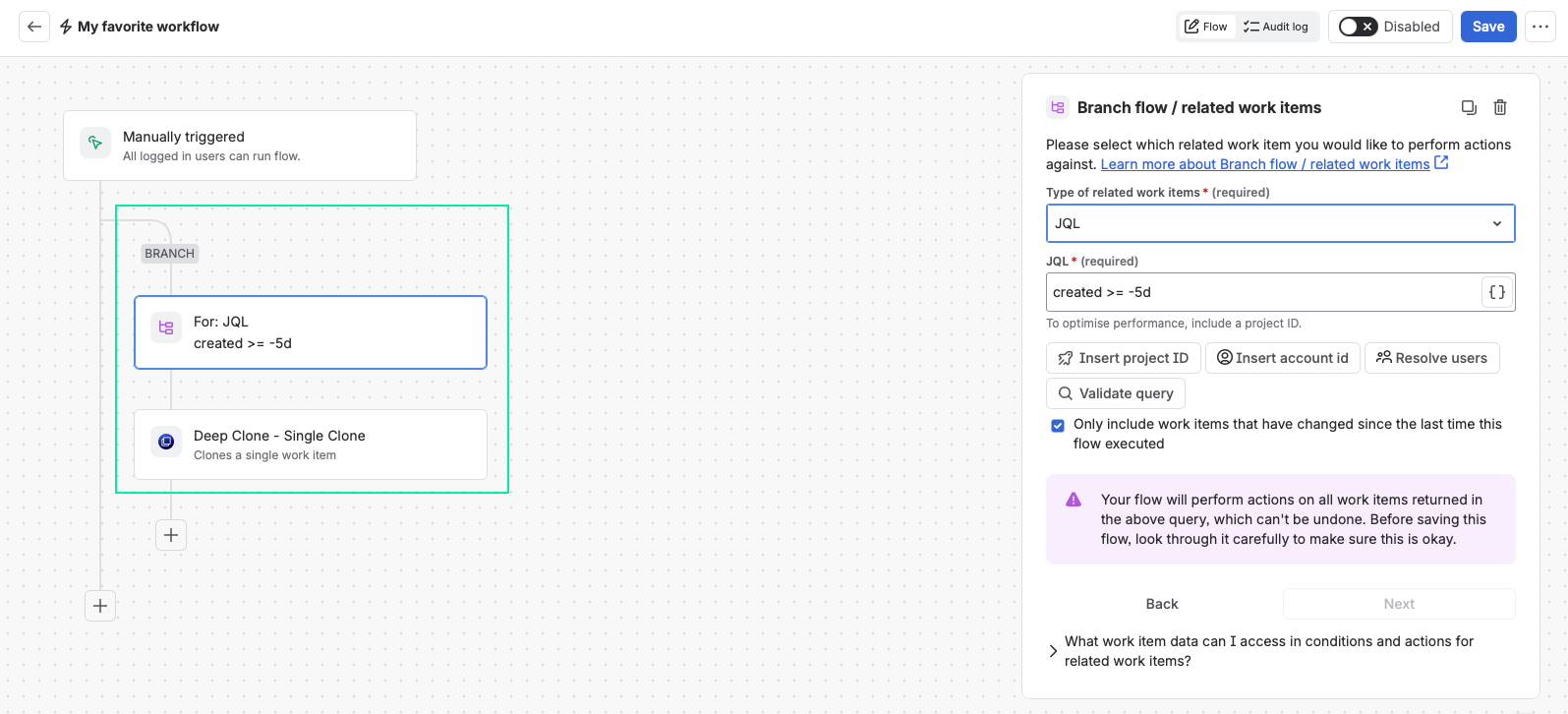
Use this to: Bulk clone work items based on a JQL query with all work item links still referring to the original work items.
-
Before adding your action step:
-
Add Branch > Branch flow/ related work items.
-
Select JQL under Type of related work items.
-
Define the JQL query for the work items that you want to clone > Next
-
-
Then:
-
Add Action > Deep Clone - Single Clone.
-
Clone to multiple target spaces
Use this to: Clone the work item that triggered your flow to multiple target spaces
-
Create 2 or more presets with different target space settings
-
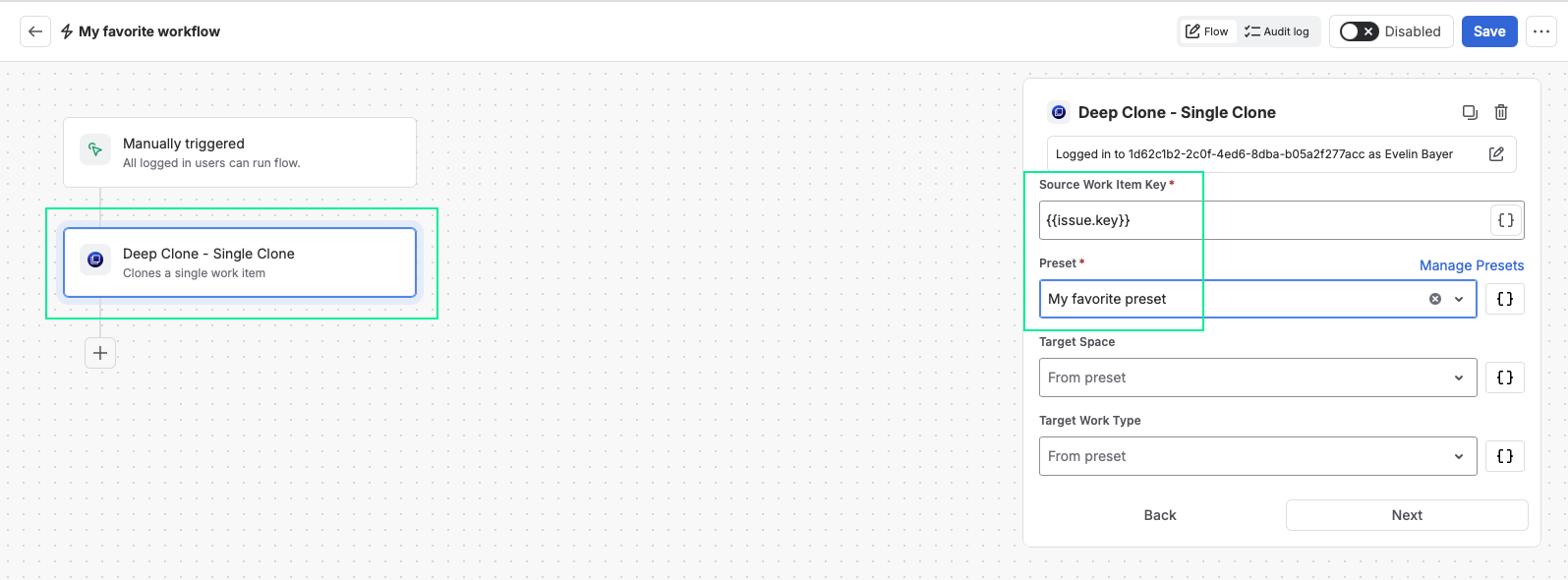
Add the 1st Deep Clone - Single Clone action to your Jira flow.
-
Enter
{{issue.key}}as your Source Work Item Key. -
Select Preset 1.
-
-
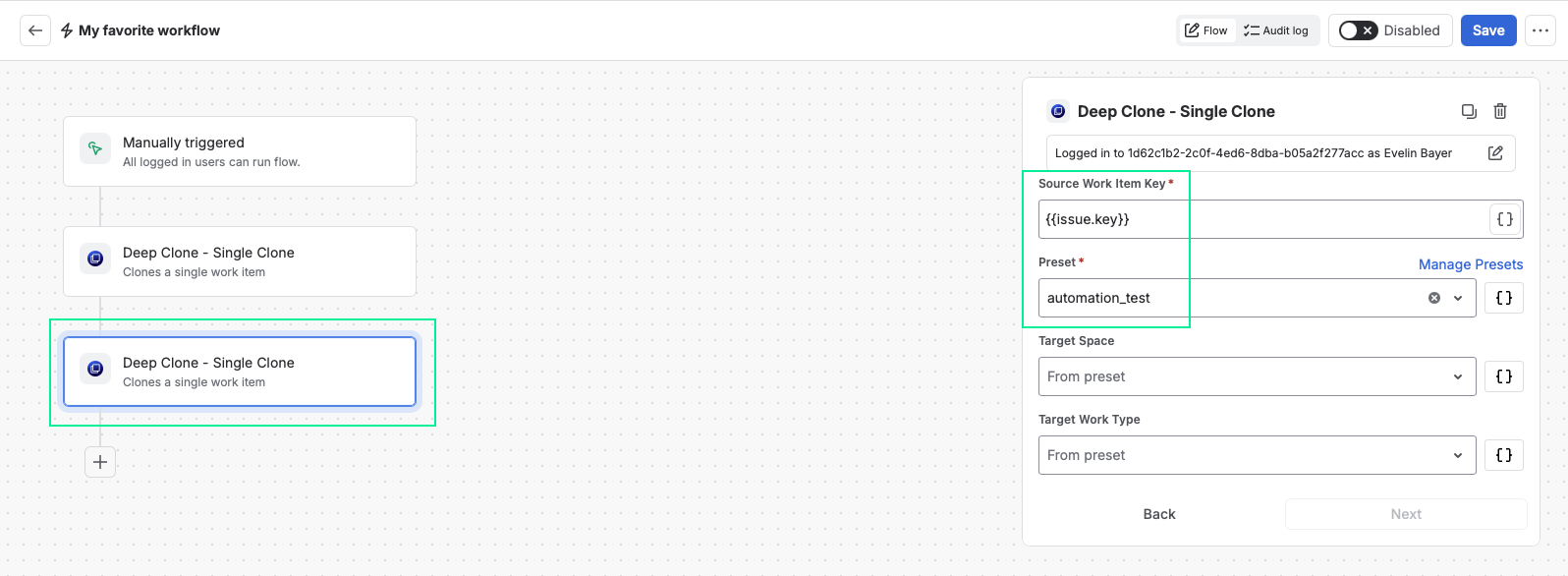
Add the 2nd Deep Clone - Single Clone action to your Jira flow.
-
Enter
{{issue.key}}as your Source Work Item Key. -
Select Preset 2.
-
You can add more Deep Clone - Single Clone actions to other spaces as needed.
Use smart values to filter and continue your automation flow
Use this to: Log smart values from the cloned work item and use them as a filter to continue within the same Jira automation.
Example
-
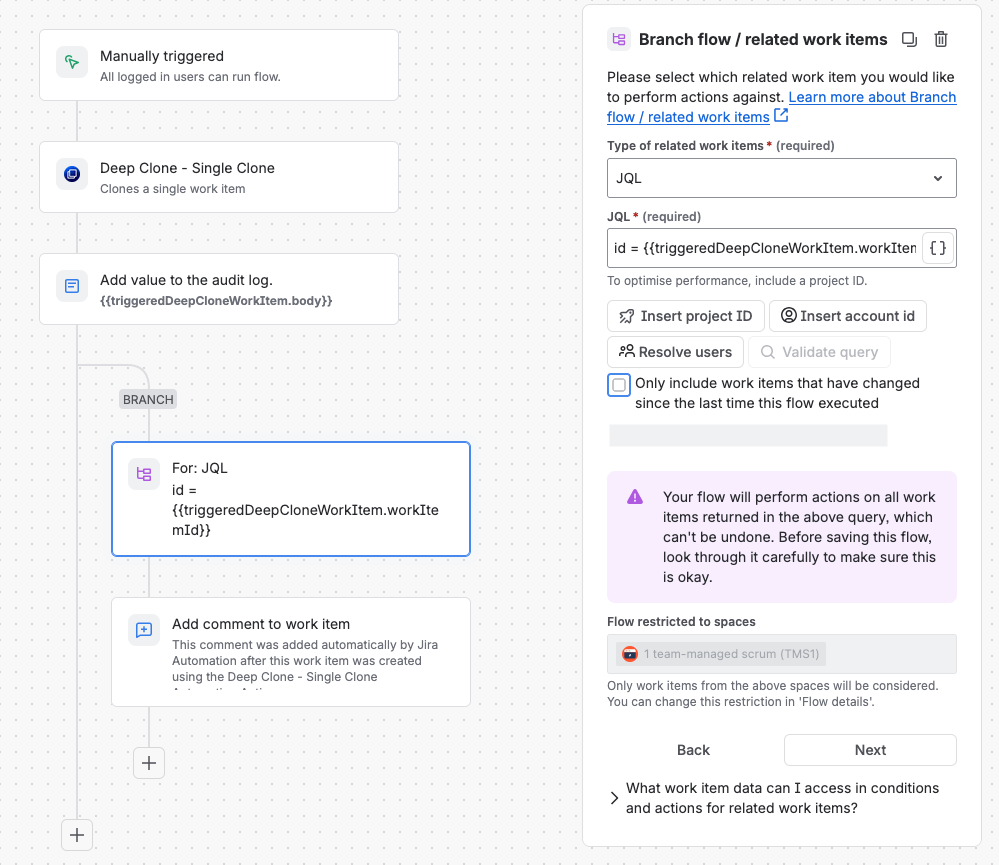
Add Action > Log action
-
Add
{{triggeredDeepCloneWorkItem.body}}as Log message. -
Add Branch Branch flow / related work items.
-
Set
id = {{triggeredDeepCloneWorkItem.workItemId}}as JQL. -
Continue the flow with any action you want.
More options
There are many ways to use smart values in Jira automations. Instead of logging {{triggeredDeepCloneWorkItem.body}} (as described above), you can use or log the following smart values in subsequent automation rules: Smart values.
For all Deep Clone automation use cases, see Automated Clone.
Free configuration
The use cases above are just examples. You are free to configure the field values as needed by entering a fixed value or smart value.
-
Click Next to complete the configuration.
Done! You have added a Deep Clone automation action to your Jira automation flow.
Keep track of your automated clones
Check the Jira automation Clone tab in the Clone History to see all clones that were executed by the Deep Clone Jira automation Action.
Only Administrators and the user to which you connected the Deep Clone Jira automation Action can see the clones in the Clone History.
Smart values
There are many ways to combine smart values with Deep Clone in Jira automations. Instead of logging {{triggeredDeepCloneWorkItem.body}} (as described in the uses cases above), you can use or log the following smart values in subsequent automation rules.
Make sure that the Jira Automation rule is either global or, if it’s a “Space (Project) rule”, within the target space where the cloned work item is created.
