
Learn to add Confluence pages to Jira Dashboards. Embed content directly from Confluence to enhance collaboration and visibility.
Discontinuation Announcement
After careful consideration, we have made the difficult decision to discontinue Embed Pages from Confluence to Jira Dashboards, effective December 31, 2025.
This decision comes as a result of a lack of traction and evolving business priorities. Despite our efforts to grow and improve the app, it has become clear that it no longer aligns with our long-term goals.
We understand that this may be disappointing, and we want to express our gratitude for your support.
If you have any questions or need assistance, please don’t hesitate to reach out to our support team.
Navigate to one of your Jira Dashboards and click on the “Edit” button in the upper right-hand corner:

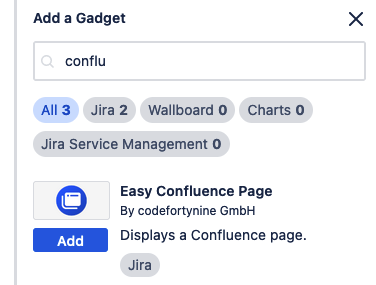
You’ll be able to add new dashboard gadgets on the right-hand side. Make sure to select the “Easy Confluence Page” gadget and click on “Add”:
Configure a Confluence Page Gadget
The “Confluence Page” gadget will be added to your dashboard. You can then copy/paste a link to a Confluence page and select which options should be enabled when showing the page. Tailor your Confluence content to fit your needs. Easy Confluence offers a variety of customization options, e.g. the ability to show comments, emojy reactions and the gadget height. Access control offers additional flexibility. Individual users can view embedded Confluence pages, ensuring privacy and security.
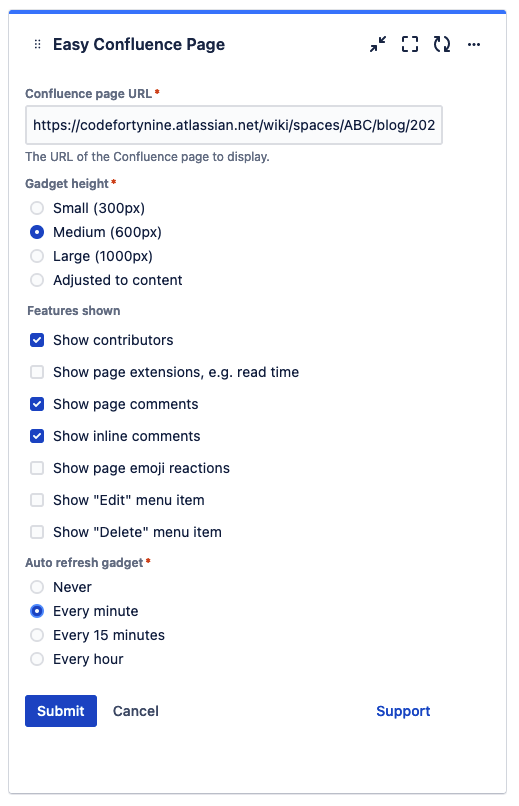
Please ensure that the URL is in one of the following formats:
-
Simple page
-
https://example.atlassian.net/wiki/spaces/[SPACE-KEY]/pages/[CONTENT-ID]/...
-
Blog page
-
https://example.atlassian.net/wiki/spaces/[SPACE-KEY]/blog/[YEAR]/[MONTH]/[DAY]/[CONTENT-ID]/...
-
Space overview page
-
https://example.atlassian.net/wiki/spaces/[SPACE-KEY]/overview?homepageId=[CONTENT-ID]
Finally, when confirming with “Submit”, the Confluence page should be shown on your Jira Dashboard.