
Deep Clone offers advanced features, that are not available in the standard clone feature of Jira.
-
It’s possible to clone certain data that is usually not clonable (e.g., comments, work item status).
-
You are flexible to decide which field you want to clone, and which not.
-
The clone can be moved to another space (project) and work type while cloning.
-
Some data can be created in the target space while cloning (components, labels, versions, sprints).
The configuration of Single Clone, Epic/Tree Clone and Bulk Clone resembles each other in most areas.
More Details About Configuration Options
It is possible
-
to move the clones in other spaces
-
to edit the work type (Single Clone, Bulk Clone)
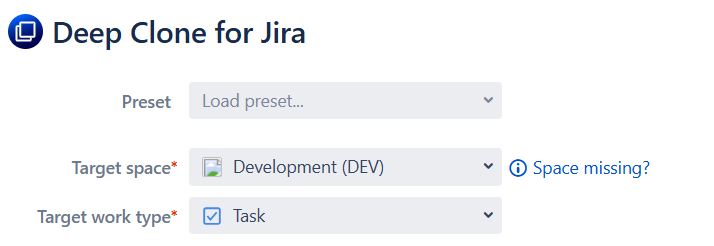
Apart from that, you can decide which content you want to copy over from the original work item to the clone.
-
-
Deep Clone will only clone Components if an identically named option exists in the target space. If the option doesn’t exist yet, check Create components if missing in target space.
-
-
-
Deep Clone will only clone Versions (Fix Version, Affected Versions) if an identically named option exists in the target space. If the option doesn’t exist yet, check Create components if missing in target space.
-
-
Attachments
-
Max. attachment size 2 GB
-
Needs to be selected to clone pictures and other files that are embedded in the Description or other Rich Text Custom Fields.
-
-
Comments
-
You can select that the original time the comment was created at will be added to the comment as the first line (since the comments themselves will be shown as being created when you clone the work item).
-
Comments and work logs with restricted visibility will not be cloned.
-
-
Work item links (excluding the “clones” work item links)
-
Remote links (e.g., Confluence or web-links)
-
-
Either copies the Sprint ID.
-
Or creates a new sprint with identical name in the target space.
-
-
Votes
-
Watchers
-
Work log
-
Subtasks
-
Clone other editable fields (not shown in the “Create work item” screen)
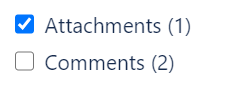
You'll see in parentheses next to these how many of an embedded type would be cloned, e.g., Attachments (1) would show that we've detected 1 attachment that would be cloned if the checkbox is activated.
Note that cloning processes involving large attachments may require a significant amount of time. If you attempt to access a work item prior to the completion of the cloning process, placeholder images will be displayed instead.
In the advanced options, you can control some other details. Some items are checked by default. These are also provided by the built-in clone functionality of Jira. The intention is that the default settings replicate the default Clone functionality from Jira as much as possible.
-
Prefix summary
-
Can be edited.
-
-
Clone work item properties
-
Usually used by apps
-
-
Add work item links between clone and original work item
-
Clone work item multiple times (Single Clone)
-
Configure Parent
-
Link to cloned epic (Bulk/Epic Clone only) - sets the Parent to the cloned Parent, if it is cloned within the same Bulk/Epic Clone
-
Keep link to original Parent - sets the Parent to the original parent work item
-
Clear - unsets the Parent
-
Additional Configuration Options