[Action required] Work Item Panel Migration Guide
External Data for Jira Fields is migrating to the Atlassian Forge Platform. You can learn more about this change in our Statement Regarding Forge Transition.
What’s Changing
Previously, the External Data Work Item Panel (on the left side of the work item view) could be configured to always be visible directly within our app settings.
After the migration to Forge, the panel will be hidden by default and can no longer be controlled from our app. Instead, Jira Admins are responsible for enabling its visibility on a per-space basis.
To make the transition smoother for existing configurations, the Forge panel will not be activated automatically until 31 January 2026. Only customers who currently have active Work Item Panel configurations in the app need to perform this migration.
What fields are affected?
All Search Fields and Info Panels with a Position of Content View (left side) within a work item are affected.
How to Migrate
During the transition period, you can plan the switch and manually enable the new Forge panel from the External Data app configuration section by going to Apps > External Data for Jira Fields > Settings > UI Configuration.

After activating the Forge Panel option, you can see more details about which field configurations are affected.

Click Save to switch to the Forge Panel. This action is reversible within the migration time period.
How to Make the External Data Forge Panel Visible
After activating the Forge Panel, follow these steps to replicate the previous behaviour:
As a Jira Admin, you can enable the panel either for a single work item or all work items within a space.
Navigate to any work item where the panel should be visible.
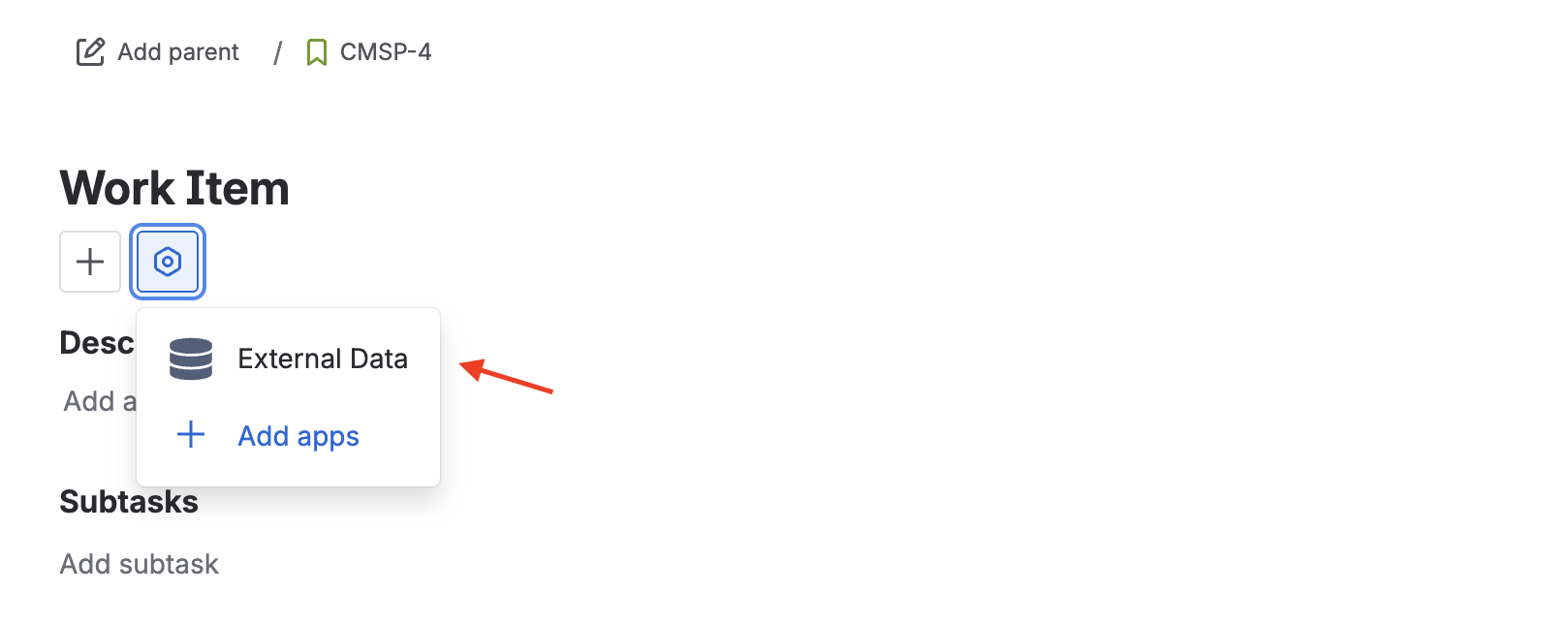
Click the External Data button or, if not initially visible, click the “hex nut” Apps icon (See picture below) and select External Data at the top of the work item view. The panel is now visible to all users for this specific work item.
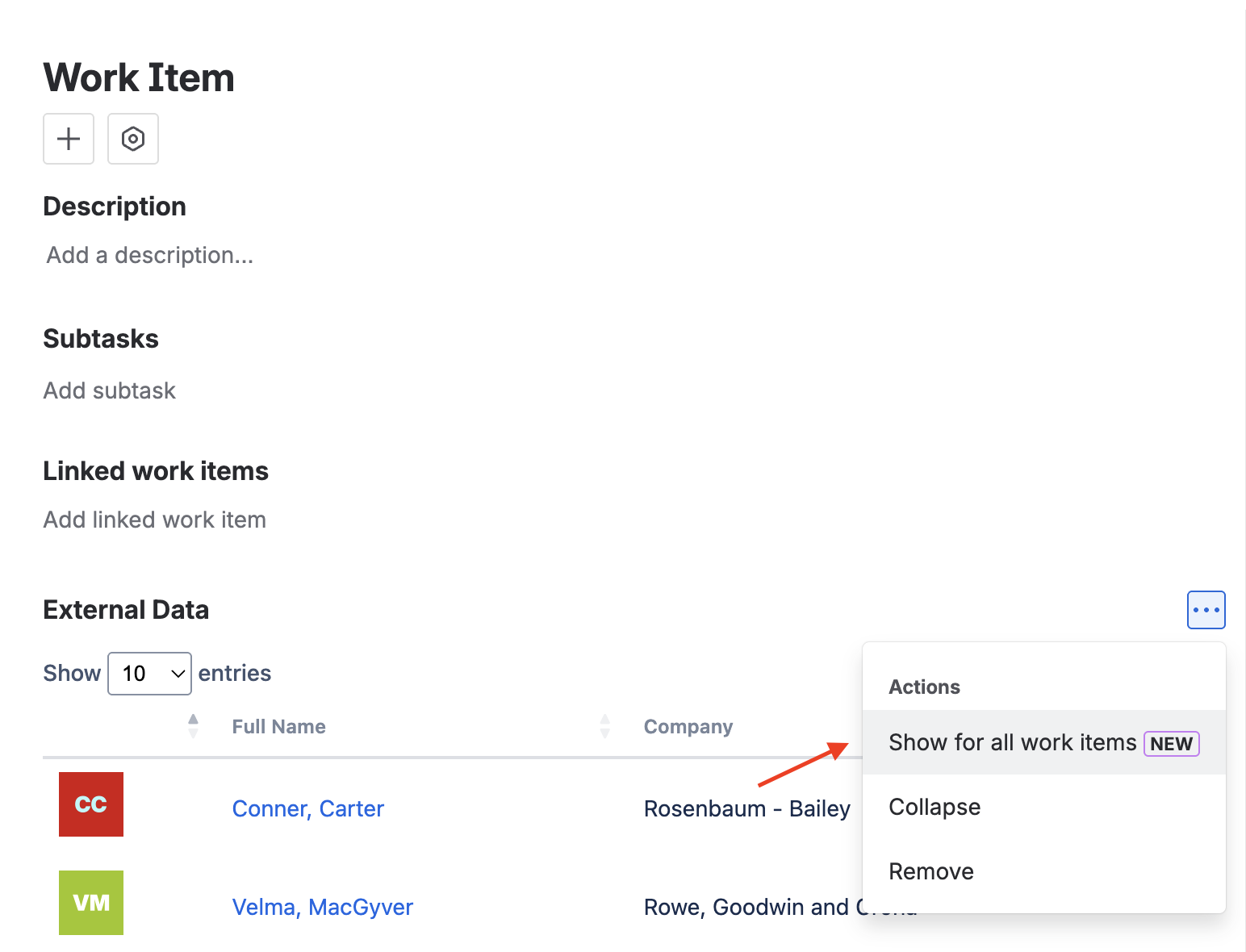
To enable the panel for all work items in the space, scroll down and open the panel menu (three-dot menu).
Panels display only fields with the Filter option set for the current work item.
Select Show for all work items. This enables the panel across all work items within the current space.